Guides

How to extend a photo background for an Instagram Story

Instagram Stories are tall (9:16), but most great photos are wide. Instead of cropping your subject or adding blurry bars, extend the background so the scene fills the screen.

Free to download · Photos auto-deleted in 48h · Updated October 22, 2026

Qutu enhancing and extending a photo with AI
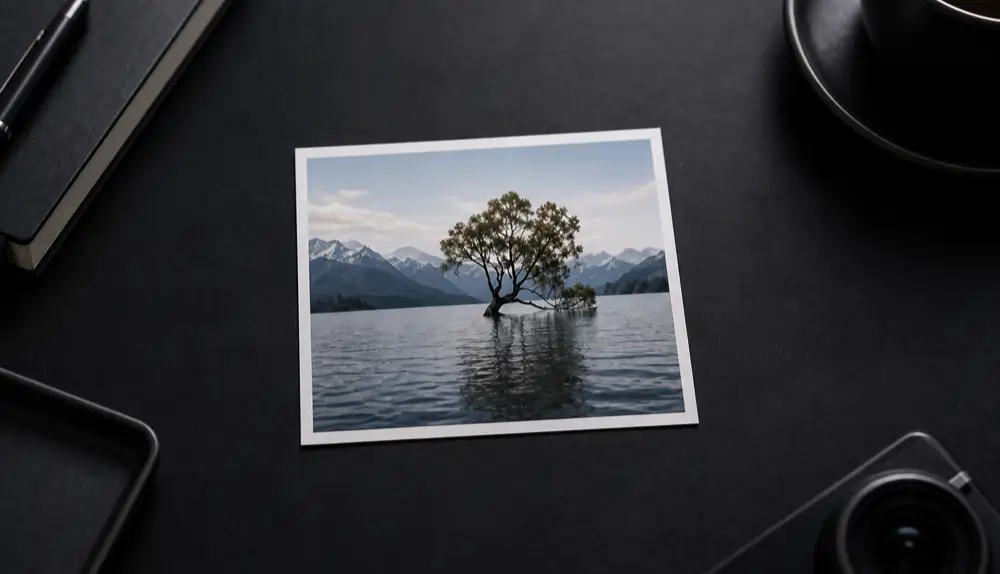
Before Before: A landscape photo extended beyond its original frame — sky, mountains and water continued by AI.
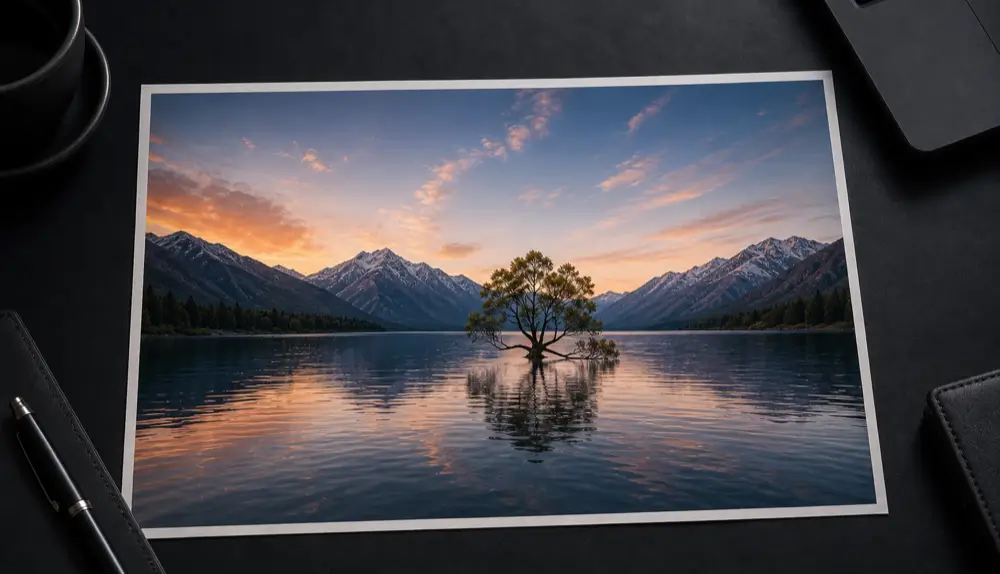
After After: A landscape photo extended beyond its original frame — sky, mountains and water continued by AI.
A landscape photo extended beyond its original frame — sky, mountains and water continued by AI.

Why not just crop?

Cropping a wide photo to 9:16 throws away most of the frame — often including the very thing you wanted to show. Adding a blurred copy behind it looks dated. Extending the photo keeps the whole subject and adds believable sky, ground or backdrop above and below.

How to do it on iPhone
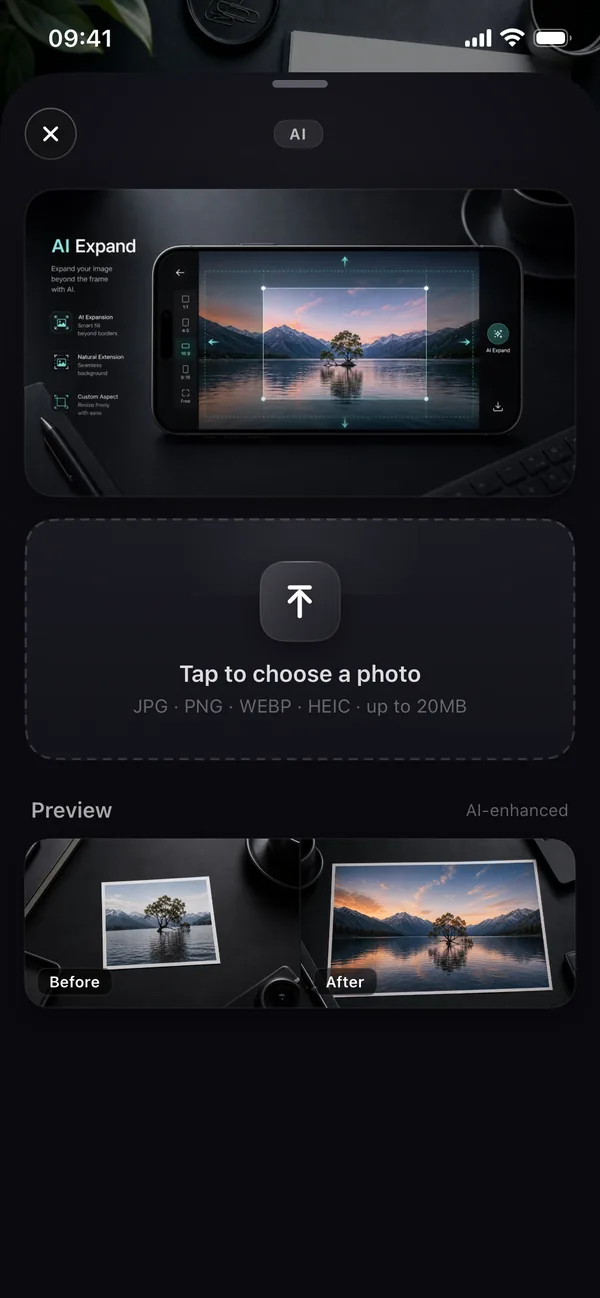
Qutu's AI Expand screen on iPhone with a before-and-after preview

  1. Open Qutu and choose Expand image.
  2. Pick the photo.
  3. Choose 9:16 as the target shape.
  4. Generate. Qutu fills the new space so the scene continues naturally.
  5. Save the result and post it to your Story.

You can do the same in your browser with Qutu Web.

Photos that expand best

  • Landscapes and cityscapes — sky and ground are easy to continue.
  • Portraits against simple backdrops — walls, studio paper, nature.
  • Product shots on a plain surface, when you need room for text.

Busy crowds and detailed architecture right at the edge are harder; give the AI a clean edge to work from when you can.

Tips

  • Start from the sharpest version of the photo so the new areas match the detail level.
  • Leave room for stickers and text at the top and bottom — that’s where Instagram places its own UI too.
  • Need it even sharper? Run the result through HD enhance before posting.

Frequently asked questions

What size is an Instagram Story?

Stories use a 9:16 aspect ratio — typically 1080 × 1920 pixels.

Does expanding change the original part of the photo?

No. The original area is kept and the AI only adds new content around it, blending the seam.

What other shapes can I expand to?

Qutu supports 1:1, 4:3, 3:4, 16:9 and 9:16 — square posts, portrait posts, wide banners and Stories.

Change the words. Keep the photo.

Qutu matches the original font, color and background, so your edit looks like it was always there.